Code & Go Robot Mouse introduces foundational coding concepts through a playful, hands-on experience․ Students program the mouse with arrow buttons, navigating mazes to reach goals!
This kit fosters problem-solving skills and algorithmic thinking, making coding accessible and engaging for young learners․ It’s a fantastic entry point into the world of programming․
The mouse features speed settings (normal/hyper) and movement controls (forward, backward, left, right) alongside action and “go” buttons for executing programmed sequences․
What is the Code & Go Robot Mouse?
The Code & Go Robot Mouse is an interactive coding toy designed to introduce children to the fundamentals of computer programming in a fun and engaging way․ This adorable robot is programmed using a sequence of arrow buttons – forward, backward, left, and right – to navigate mazes and complete challenges․
It’s a tangible tool that allows kids to visualize and understand concepts like sequencing, directionality, and debugging․ The mouse can execute up to 40 steps, offering ample opportunity for complex program creation and problem-solving․
Benefits of Using a Robot Mouse for Coding Education
Using the Code & Go Robot Mouse offers numerous benefits for coding education․ It fosters critical thinking, problem-solving, and algorithmic thinking skills in a playful manner․ The hands-on approach makes abstract coding concepts concrete and accessible for young learners, boosting engagement and comprehension․
It encourages experimentation, debugging, and iterative design, essential skills for future programmers․ Furthermore, it promotes collaboration and communication as students share strategies and troubleshoot challenges together, building confidence and a love for coding․

Understanding the Robot Mouse Components
The Robot Mouse features a power button with speed settings, arrow buttons for movement, an action button for random functions, and a “go” button to execute programs․
These components allow students to program sequences up to 40 steps, learning coding fundamentals through interactive play and exploration․
Power Button & Speed Settings (Normal vs․ Hyper)
The power button controls not only the mouse’s on/off state but also its speed․ Sliding the button to the right selects “hyper” speed, ideal for play on floors or larger surfaces where greater distance is needed․
Conversely, the “normal” speed, activated by positioning the button to the left, is best suited for use with the provided maze boards․ This ensures precise movements within the grid, allowing for accurate programming and successful completion of challenges․ Choosing the correct speed is crucial for optimal performance!
Movement Buttons (Forward, Backward, Right, Left)
The arrow buttons dictate the robot mouse’s movement․ Forward and backward arrows propel Colby a consistent distance of 5 inches with each press, enabling precise path planning․ The right and left arrows, however, don’t move the mouse linearly․
Instead, they initiate a 90-degree rotation in the corresponding direction․ Mastering these directional controls is fundamental to programming effective routes and navigating the maze successfully․ Careful consideration of turns is key!
Action Button (Random Actions)
The red Action button introduces an element of unpredictability into the programming sequence; Each time an action step is included, Colby the mouse will perform one of three random actions․ This feature encourages adaptability and problem-solving skills as students learn to account for unexpected behaviors․
While seemingly chaotic, the action button can be strategically used to add complexity and challenge to the coding experience, fostering creative thinking and resilience in young programmers․
Go Button (Executing Programmed Sequences)
The green “Go” button is the culmination of the programming process! Pressing this button initiates the execution of the sequence created using the arrow and action buttons․ Colby will then attempt to follow the programmed path, step-by-step, up to a maximum of 40 steps․
Observing the mouse’s execution allows students to test their code, identify errors, and refine their algorithms․ It’s a crucial step in understanding the link between code and real-world action․
Setting Up the Play Area
Begin by selecting an activity card and replicating its grid layout․ A floor or large table provides an optimal, spacious surface for mouse navigation․
Ensure ample space to prevent falls and allow for smooth movement as the mouse executes the programmed sequence towards its cheesy destination!
Choosing an Activity Card
Selecting an activity card is the first step in setting up a coding challenge with the Code & Go Robot Mouse․ These cards present pre-designed mazes with a clear start and finish point – typically a cheese wedge!
Each card illustrates the grid layout, showing where obstacles are placed․ Beginners should start with simpler cards (like card #1) to grasp the basic concepts of sequencing․ As confidence grows, progress to more complex cards with intricate paths and multiple turns․
Carefully observe the card’s arrangement before building the physical grid, ensuring accurate replication for a successful coding experience․
Grid Setup & Matching the Activity Card
Carefully construct the grid to precisely mirror the chosen activity card’s layout․ The grid tiles snap together, forming a pathway for the robot mouse․ Ensure each tile is securely connected to prevent disruptions during programming and execution․
Pay close attention to the placement of walls and obstacles, replicating the card’s design exactly․ Accurate grid setup is crucial for the mouse to follow the intended path․ Double-check your work before proceeding!
A correctly matched grid provides a visual representation of the coding challenge․
Optimal Play Surface (Floor or Large Table)
Select a spacious, flat surface – either the floor or a large table – to accommodate the grid and robot mouse’s movements․ This minimizes the risk of the mouse falling off the edge during operation, protecting the device and maintaining play continuity․
A larger surface allows for more complex maze designs and provides ample room for error during programming․ Avoid uneven surfaces that could interfere with the mouse’s navigation․
Prioritize safety and smooth operation by choosing an appropriate play area․
Programming the Robot Mouse
Program a path using the arrow buttons, creating a sequence of up to 40 steps․ Press the “Go” button to execute your programmed instructions and watch Colby move!
Using the Arrow Buttons to Create a Path
To program Colby, utilize the forward, backward, right, and left arrow buttons․ Each arrow press moves the mouse approximately 5 inches forward or backward․ Right and left arrows rotate Colby 90 degrees in place․
Carefully plan your sequence, considering the maze layout and desired path․ Press the buttons in the order you want Colby to move, building a program step-by-step․ Remember, a maximum of 40 steps can be programmed at once!
Visualize the path as you input the commands, ensuring Colby reaches the cheese efficiently․
Programming Sequence Length (Up to 40 Steps)
The Code & Go Robot Mouse allows for programming sequences of up to 40 steps․ This limitation encourages efficient coding and thoughtful planning of the mouse’s path․ Each button press – forward, backward, left, or right – counts as one step in the sequence․
For complex mazes, break down the solution into smaller, manageable segments․ Carefully consider each step to optimize the program and avoid exceeding the 40-step limit․
Strategic planning is key to successful maze navigation!
Executing the Program with the “Go” Button
Once the desired path is programmed using the arrow buttons, press the green “Go” button to initiate the sequence․ The Robot Mouse will then execute the programmed instructions, moving step-by-step according to the entered commands․
Observe the mouse carefully during execution to identify any discrepancies between the intended path and the actual movement․ This observation is crucial for debugging and refining the program․
Pressing “Go” brings the code to life!
Coding Concepts Introduced
The Robot Mouse elegantly introduces directionality, sequencing, and algorithm development․ Students learn to debug and problem-solve, building essential coding foundations through play!
Directionality & Arrow Notation
Understanding arrow notation is crucial for programming the Code & Go Robot Mouse․ Forward arrows move Colby five inches, while backward arrows reverse the direction․
Right and left arrows rotate the mouse ninety degrees in place, enabling precise turns within the maze․ Students quickly grasp how these directional commands translate into a programmed path․
The Bottle Cap Arrow Game reinforces this concept, visually demonstrating how arrow sequences dictate movement․ Mastering arrow notation is the first step towards successful maze navigation!
Sequencing & Algorithm Development
Sequencing involves arranging commands in a specific order to achieve a desired outcome․ With the Code & Go Robot Mouse, students build algorithms – step-by-step instructions – using the arrow buttons․
Each button press represents a command in the sequence, dictating the mouse’s movement․
Developing these sequences requires logical thinking and planning․ Students learn that the order of commands dramatically impacts the mouse’s path, fostering early algorithm development skills and problem-solving abilities․
Debugging & Problem Solving
Debugging is a crucial skill in coding, and the Code & Go Robot Mouse provides a safe space to practice it․ When the mouse doesn’t reach the cheese, students must analyze their programmed sequence․
They identify errors – incorrect commands or their order – and modify the code to correct the path․
This iterative process of testing, identifying, and fixing errors builds resilience and strengthens problem-solving skills, essential for success in coding and beyond․

Advanced Play & Challenges
Elevate gameplay by designing custom mazes, combining activity cards, and introducing obstacles․ These challenges encourage creativity and deepen coding comprehension!
Complex paths demand more sophisticated programming, fostering advanced algorithmic thinking and problem-solving abilities․
Creating Custom Maze Challenges
Unleash creativity by designing personalized maze layouts beyond the provided activity cards! Use graph paper or readily available grid materials to sketch unique pathways․
Consider incorporating multiple goals, dead ends, and varying path lengths to increase complexity․ Encourage students to test their designs and refine their code accordingly․
Introduce thematic elements – a “rescue mission” or “treasure hunt” – to enhance engagement․ This fosters a deeper understanding of sequencing and algorithmic thinking while making learning fun!
Using Multiple Activity Cards
Extend the learning by combining elements from several activity cards into a single, more complex challenge․ Students can sequentially solve multiple mazes, linking the end of one to the start of the next․
This encourages planning and foresight, requiring them to consider the entire program’s flow․ Introduce a scoring system based on efficiency and accuracy․
Challenge students to create a “grand tour” that visits specific points on different cards, fostering advanced problem-solving and coding skills․
Introducing Obstacles & Complex Paths
Elevate the difficulty by adding obstacles to the grid – blocks, small toys, or even drawn barriers․ This forces students to refine their programs, accounting for the new constraints․
Design paths with loops and branching points, demanding more sophisticated algorithmic thinking․ Encourage students to test and debug their code iteratively․
Complex paths promote a deeper understanding of sequencing and spatial reasoning, solidifying coding concepts in a practical, engaging manner․
Troubleshooting Common Issues
If the mouse isn’t responding, check the batteries and power switch․ For incorrect paths, carefully review the programmed sequence and grid setup for errors․
Robot Mouse Not Responding
If your Code & Go Robot Mouse isn’t responding, begin by verifying the power switch is firmly in the “on” position․ Next, ensure fresh batteries are correctly installed, paying close attention to polarity․ Sometimes, a simple battery replacement resolves the issue․
Also, confirm that no buttons are being held down accidentally, as this can interfere with operation․ If the problem persists, try resetting the mouse by removing and reinserting the batteries․ A full reset can often restore functionality․
Incorrect Path Execution
When the Robot Mouse executes an incorrect path, carefully re-examine your programmed sequence․ Double-check each arrow button press to ensure accuracy, verifying the intended direction for each step․ Confirm the grid setup precisely matches the chosen activity card, as misalignment causes errors․
Slowly step through the program, observing the mouse’s movements․ Consider if the surface is impacting movement, and ensure a consistent, flat play area is used for reliable results․
Difficulty with Grid Setup
If you’re facing challenges setting up the grid, ensure each tile is correctly aligned and securely connected․ Refer closely to the chosen activity card, meticulously matching the maze layout․ Pay attention to the starting point and the cheese location, verifying their positions․
A wobbly or uneven grid can disrupt the mouse’s path, so a stable surface is crucial․ Take your time and double-check each connection for a smooth, accurate play experience․
Modifications for Accessibility
Adaptations enhance inclusivity! For visually impaired students, tactile grids and audio cues are beneficial․ Alternative grid materials offer varied sensory experiences, promoting engagement․
Adapting for Visually Impaired Students
Tactile grids are crucial! Utilize grids with raised lines or textures to define pathways, allowing students to “feel” the maze․ Consider using contrasting colors for students with low vision․
Verbalizing the programming sequence is also incredibly helpful; have students announce each command as they input it․ Pairing students can foster collaborative learning, with one student providing visual guidance if needed․
Audio cues, like beeps for each step, can confirm successful programming․ Focus on the logical thinking aspects of coding, minimizing reliance on visual observation․
Alternative Grid Materials
Beyond the standard grid, explore diverse options! Foam tiles offer a tactile and cushioned surface, ideal for younger learners․ Masking tape on a large floor space creates a temporary, customizable grid․
Cardboard squares, securely taped together, provide a cost-effective solution․ Consider using textured materials like bubble wrap or corrugated cardboard for added sensory input․
Experiment with different colors and patterns to enhance visual clarity․ The key is to create a defined pathway that the robot mouse can reliably navigate․
Integrating with Storytelling
Combine coding with narratives! Use “Mouse Count” to introduce coding, then create challenges where students program the mouse to rescue friends from a snake!
Narrative-driven tasks boost engagement and demonstrate coding’s real-world applications, making learning more meaningful and fun for all students․
Begin with Ellen Stoll Walsh’s “Mouse Count” to spark interest and establish a relatable context for coding․ The story’s sequential nature mirrors programming logic, making it an ideal starting point․
Discuss how the mice enter and exit the jar, relating this to the mouse’s movement in the Code & Go kit․ Then, challenge students to program the robot mouse to “rescue” a set number of mice, mirroring the story’s progression․ This bridges literacy with STEM concepts, fostering a deeper understanding of sequencing and algorithms․
Creating Narrative-Driven Challenges
Transform coding exercises into engaging stories! Design scenarios where the robot mouse is a hero on a quest․ For example, program the mouse to deliver a message, collect supplies, or escape a villain – a playful snake, perhaps!
These narratives boost motivation and demonstrate coding’s real-world applications․ Encourage students to invent their own stories and corresponding mazes, fostering creativity and solidifying their understanding of programming concepts within a compelling context․

Safety Considerations
Always supervise children during play․ Prevent falls by using the Code & Go kit on a floor or large table, ensuring a safe play environment․
Preventing Falls from Surfaces
To minimize the risk of falls, it is highly recommended to utilize the Code & Go Robot Mouse kit on a flat, stable surface like the floor or a large table․
Avoid elevated edges or unstable furniture where the mouse could tumble․ A clear, open play area ensures the robot’s path is unobstructed and reduces potential accidents․
Regularly check the play surface for any hazards and maintain constant supervision, especially with younger children, to guarantee a safe and enjoyable coding experience․
Supervision During Play
Adult supervision is crucial during Code & Go Robot Mouse activities, particularly for younger learners․ Guidance helps children understand coding concepts and troubleshoot challenges effectively․
Supervision ensures safe play, preventing accidental damage to the robot or the surrounding environment․ It also fosters a positive learning experience, encouraging exploration and creativity․
Active involvement from an adult can enhance engagement and provide valuable support as children develop their problem-solving and algorithmic thinking skills with the kit․
Resources & Further Learning
Explore the official Code & Go Robot Mouse website for additional activity cards, tutorials, and coding challenges to expand learning beyond the basic kit!
Numerous online resources offer supplementary lessons and engaging activities to reinforce coding concepts and inspire further exploration․
Official Code & Go Robot Mouse Website
Visit the Learning Resources website for an extensive collection of materials designed to enhance the Code & Go Robot Mouse experience․ You’ll discover downloadable activity cards, offering varied maze challenges to test and refine programming skills․
The site also provides detailed tutorials, guiding educators and students through setup, programming, and troubleshooting․ Explore supplementary lesson plans integrating the robot mouse into broader STEM curricula․ Discover community forums where users share ideas and solutions, fostering a collaborative learning environment․
Link: [https://www․learningresources․com/](https://www․learningresources․com/)
Online Tutorials & Coding Challenges
YouTube is a treasure trove of Code & Go Robot Mouse tutorials, offering visual guidance on setup, programming, and advanced techniques․ Search for “Code & Go Robot Mouse tutorial” to find numerous helpful videos demonstrating maze solutions and coding strategies․
Websites like Code․org and Scratch provide coding challenges that complement the robot mouse’s learning objectives․ These platforms allow students to apply their sequencing and debugging skills in a digital environment, reinforcing concepts learned with the physical toy․
Explore these resources to expand learning!
Code & Go Robot Mouse and Email Integration
Sharing code sequences directly in emails can be tricky due to formatting issues․ Typing code samples into Outlook often requires careful attention to spacing and characters․
Sending Code Samples in Emails
When sharing Code & Go Robot Mouse programs via email, representing the sequence accurately is key․ Simply typing arrow directions (forward, backward, left, right) can become visually cluttered and prone to errors․ Consider using a text-based representation, like “F” for forward, “B” for backward, “L” for left, and “R” for right, to create a concise code string․
For example, a sequence could be represented as “FFRLLFB”․ Clearly indicate this key to the recipient․ Alternatively, a screenshot of the programmed sequence on the mouse itself can provide a visual reference, ensuring clarity and minimizing misinterpretations during communication․
Formatting Code in Outlook
To effectively display Code & Go Robot Mouse sequences within Outlook emails, utilize monospaced fonts like Courier New․ This ensures consistent character width, crucial for aligning arrow commands (forward, backward, left, right) and preventing visual distortion․ Employing fixed-width fonts maintains the intended sequence structure․
Consider using line breaks between each command for enhanced readability․ Avoid rich text formatting, as it can interfere with the alignment․ A simple text format preserves the integrity of the programmed path, facilitating clear communication of the mouse’s instructions․
Visual Studio Code Integration (Related Concepts)
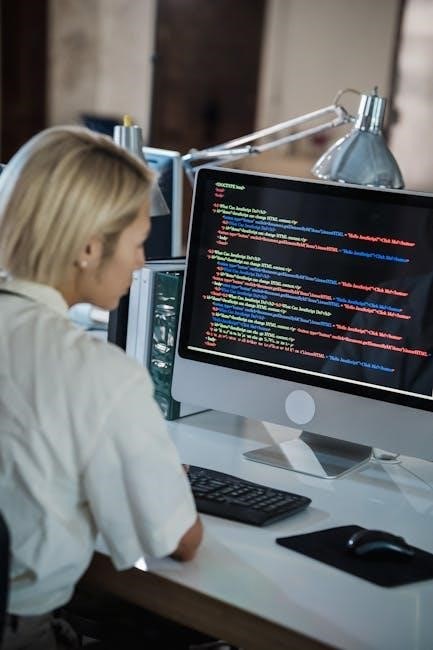
While not directly integrated, VS Code’s indenting and commenting features mirror coding principles taught with the Robot Mouse, reinforcing logical sequence and clarity․
Indenting Code in Visual Studio Code
Indentation in VS Code, like programming the Robot Mouse, creates readable and logical code․ Use Shift + Alt + F (or Shift + Option + F on macOS) to automatically format your entire document, ensuring consistent spacing․
Select a specific code block and press Tab to indent, or Shift + Tab to unindent․ This mirrors creating a path for the mouse – clear structure is vital for successful execution!
Proper indentation highlights the sequence of commands, just as arrow buttons define the mouse’s route․ Consistent formatting aids debugging and comprehension․
Commenting and Uncommenting Code in Visual Studio Code
Commenting code in VS Code is like adding notes to your Robot Mouse program – explaining each step! Select the lines you want to comment, then press Ctrl + / (or Cmd + / on macOS)․ This adds “//” at the beginning of each line․
To uncomment, repeat the process․ Comments don’t execute, aiding debugging and understanding, similar to testing your mouse’s path before pressing “Go․”
Effective commenting clarifies your code’s logic, making it easier to modify and share, just like documenting a complex maze for others to solve!